Turn a customer spreadsheet into review requests, one reviewed batch at a time
Most businesses already have their customer list somewhere: an export from QuickBooks or Jobber, the Google Sheet the office keeps, a spreadsheet from the old system. ReviewNudger takes that file as a CSV, shows you exactly which rows will get a request and why the rest will not, and then sends one neutral Google review request per sendable row under the same timing, cooldown, opt-out, and consent rules as every other request. It is the fastest way to ask the customers you served before you connected anything.
14-day free trial · card required · then $29/mo per location · cancel anytime
Trial: up to 50 SMS attempts from your approved toll-free number or, when the sending conditions are met and one is available, a ReviewNudger number during carrier review. See pricing for sending limits.
Three columns are all it needs
The file needs a header row with a name column and at least one of email or phone. Column names are matched loosely, so an export from your accounting or field-service software usually works without editing.
Export from what you already use
QuickBooks, Jobber, Excel, and Google Sheets all export CSV. The upload dialog includes a sample file if you would rather start from a clean template.
Customers are saved either way
Every valid row creates or updates a customer record. Sending is a separate checkbox, so you can import a list now and ask later, one customer or a selection at a time.
Up to 200 rows per upload
A review-request batch should stay reviewable. Bigger lists are split and uploaded one file at a time rather than sent as a single blast.
See who gets asked before anything sends
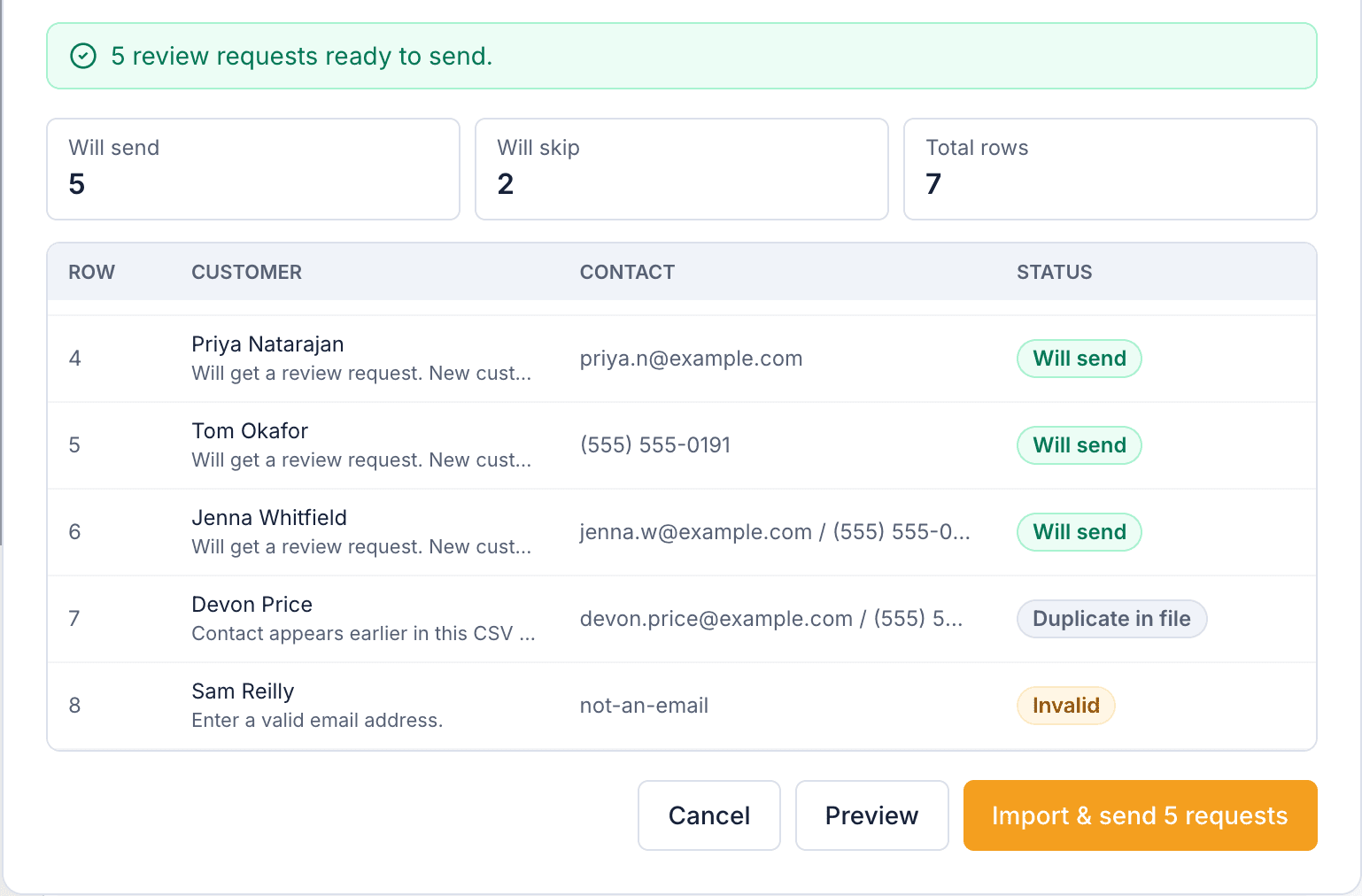
The preview runs every row through the same checks a live request faces and labels each one: will send as a new customer, will send as an existing customer, or skipped with the reason written out.
Recently asked customers are skipped
A row that matches a customer inside your location cooldown window is held back, so an upload cannot re-ask someone you texted last week.
Ambiguous matches are surfaced, not merged
When a row could belong to two existing customers, the preview flags it instead of guessing. Conservative matching means the wrong person never gets a request.
Duplicates inside the file collapse
The same email or phone listed twice sends once. Invalid contacts and blank rows are counted and shown, never silently dropped.
Every row follows your review request settings
An upload is a manual send, not a bypass. Each request goes through the location policy, the channels you allow, opt-outs, do-not-contact status, and the same consent confirmation staff give for every typed-in customer.
Consent is recorded at the point of entry
You confirm that everyone in the file agreed to be contacted about their visit, and that confirmation is stored against each request. The box is never pre-ticked.
Texts wait for your approved number
Rows that can only be reached by text send once your business texting number is verified. Until then the preview says so instead of failing later.
One click cannot double-send
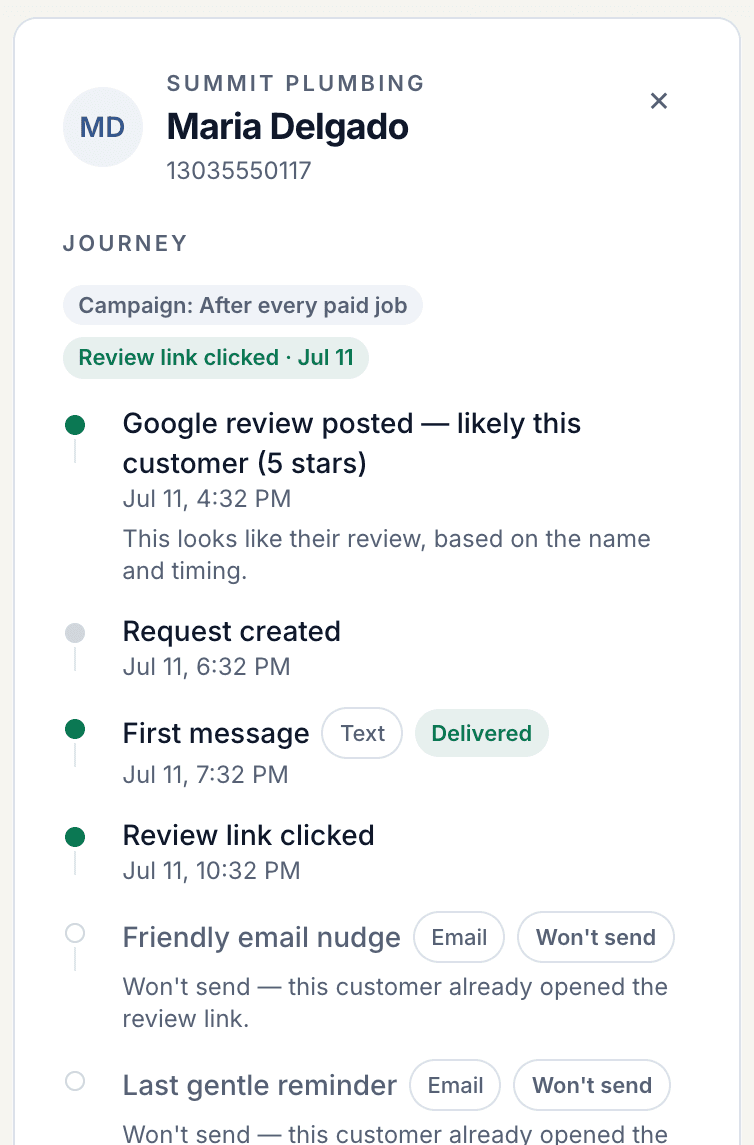
Each row is keyed to the file contents and its row number, so a double-click on confirm or the same file uploaded twice lands on the same requests instead of new ones.
From spreadsheet to sent requests
Four steps, and the middle two are where you stay in control of who is asked.
- 1Export a CSV with name, email, and phone columns from your accounting, field-service, or spreadsheet software.
- 2Upload it on the Customers page and tick "Also send review requests to everyone in this file". Choose the location and campaign if you have more than one.
- 3Read the preview: counts of rows that will send and rows that will skip, with a plain-English reason on every skipped row.
- 4Confirm to create one review request per sendable row. Each customer receives one neutral request through the same send pipeline as automated and quick-send requests, followed by any follow-up steps your campaign defines.
What this feature does not promise
ReviewNudger is deliberately clear about provider boundaries, consent, and outcomes.
- Uploads are capped at 200 customer rows per file; larger lists are split into several uploads.
- The file must have a header row with a name column and an email or phone column. Other columns are ignored rather than imported.
- Text messages send only after your business texting number is approved, and email requests need a business postal address on file.
- A spreadsheet upload cannot skip the cooldown, opt-out, or consent rules that apply to every other request, and it cannot guarantee that a customer leaves a review.
Frequently asked questions
What columns does the CSV need?
A header row with a name column and at least one of email or phone. Headers like "Email Address", "Phone Number", or "Mobile" are recognized, so an export from QuickBooks, Jobber, Excel, or Google Sheets usually works without editing.
Will this re-send to customers I already asked?
No. The preview checks each row against your location cooldown window and marks recently asked customers as skipped. Customers who opted out or are marked do-not-contact are skipped too, with the reason shown on the row.
Can I import customers without sending anything?
Yes. Leave the send checkbox unticked and the upload only saves or updates customer records. You can send to them individually, or select several and send, whenever you are ready.
What happens if I upload the same file twice?
Nothing new is sent. Each row is identified by the file contents and its row number, so a repeat upload of an unchanged file resolves to the same requests. Edit the file and it is treated as a fresh batch, still subject to the cooldown.
Is uploading a list of past customers allowed?
Only customers who agreed to be contacted belong in the file, and you confirm that when you send. Every request carries an opt-out, and every customer gets the same neutral ask with the public Google review link, so an upload never gates or filters reviews.
Keep exploring
Follow the feature into the relevant workflow, free tool, or practical guide.

Make review requests part of your routine.
Set up in about 10 minutes. Requests go out after each paid job, follow-ups run on their own, and every review lands in one inbox.
$0 today · card required · no charge until your 14-day trial ends · $29 a month per location after that