
Multiple locations
Google review requests for multiple locations
Set up review requests for each business location and connect that location’s own Google Business Profile.

One location’s account
Separate setup and subscription
- 1.Create an account for each location
- 2.Connect each Google Business Profile
- 3.Set up how each location sends
- Separate location accounts
- Each location’s Google listing
- Your choice of timing
Review requests for each location
Choose the setup in each location’s own account.
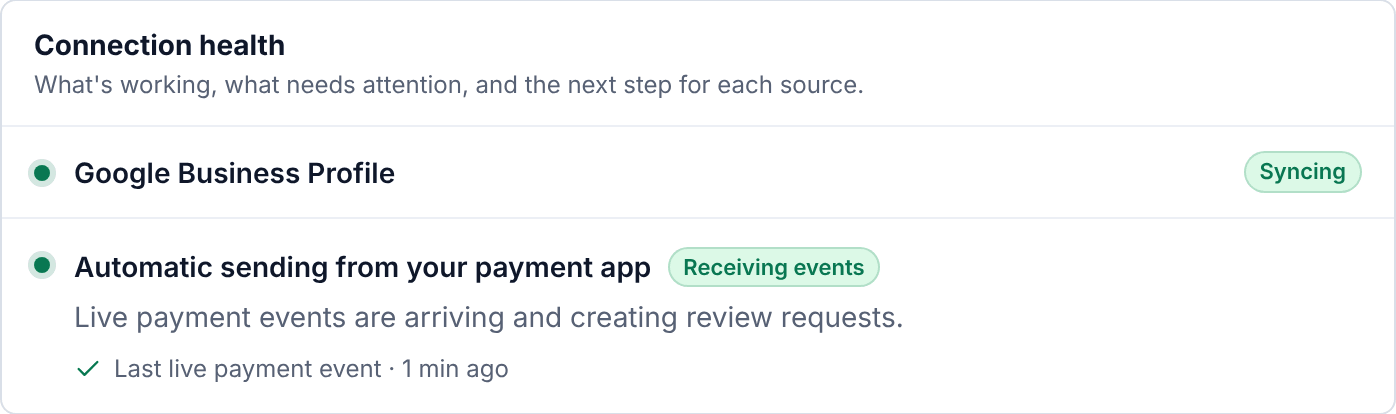
Fictional example
Example only: fictional Summit Plumbing, North location, not a customer.
Set up one location at a time
Create an account for each location
Each location has its own ReviewNudger account and subscription.
Connect each Google Business Profile
Use the profile for that location so requests point customers to the right Google listing.
Set up how each location sends
Connect supported software or have staff send requests by hand. Choose text, email, or both in each account.
Send from the right location
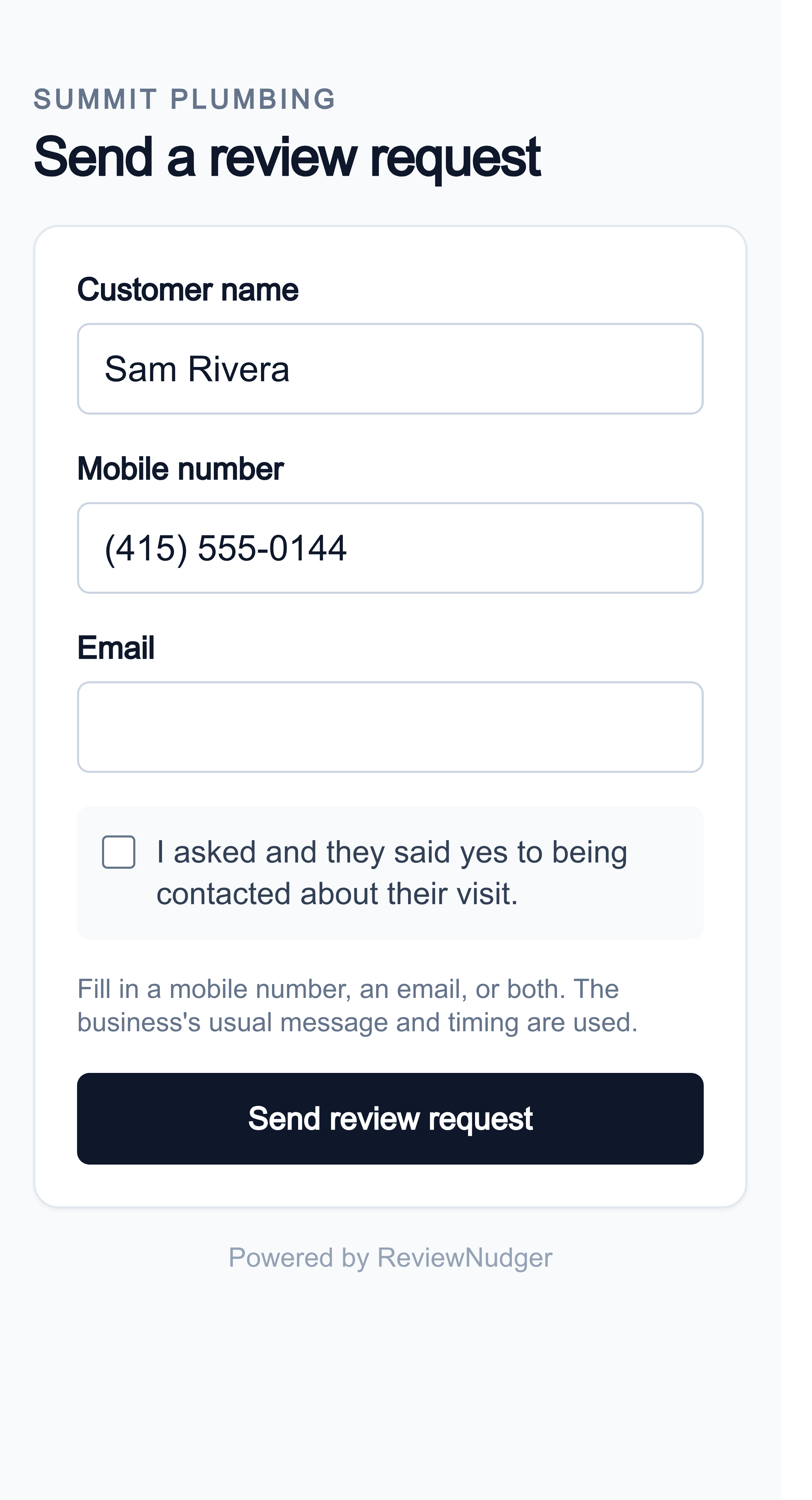
Staff can use the quick-send form to enter a customer’s details and send a request. The request points to the Google listing connected to that location’s account.
See how each location can run requests
Check which apps can start review requests for each location. Then see what the subscription includes.
Questions about multiple locations
Do locations share a ReviewNudger account?
Each location has its own account and subscription. Set up each location with its own Google Business Profile and review link.
Can locations use different software?
Yes. Set up each account with the supported software that location uses. Staff can also send requests by hand from that location’s account.
Can each location set its own request timing?
Yes. Set the timing, channels and follow-ups in each location’s account.
Plan your setup for each location
Each location has its own account and subscription.
Talk through your locations