Surveys and private feedback
Hear from customers. Keep your review link open.
Start a review request with a quick question or a 1 to 5 survey, or ask for private feedback only. Both are off by default.
14 days free, then $29/month per location. Card required.

How it works
Surveys and private feedback
- 01Choose what customers see first
- 02The request goes out
- 03The customer answers
- 04You read the feedback
- Reactions
- Survey
- Private feedback
- Follow-ups stop after feedback
How it works
From request to answer
Step 1
Choose what customers see first
Pick Reactions, Survey or Private feedback in Settings. Sending customers straight to Google stays the default.
Step 2
The request goes out
Text or email, on your campaign’s timing. Your sending rules still apply.
Step 3
The customer answers
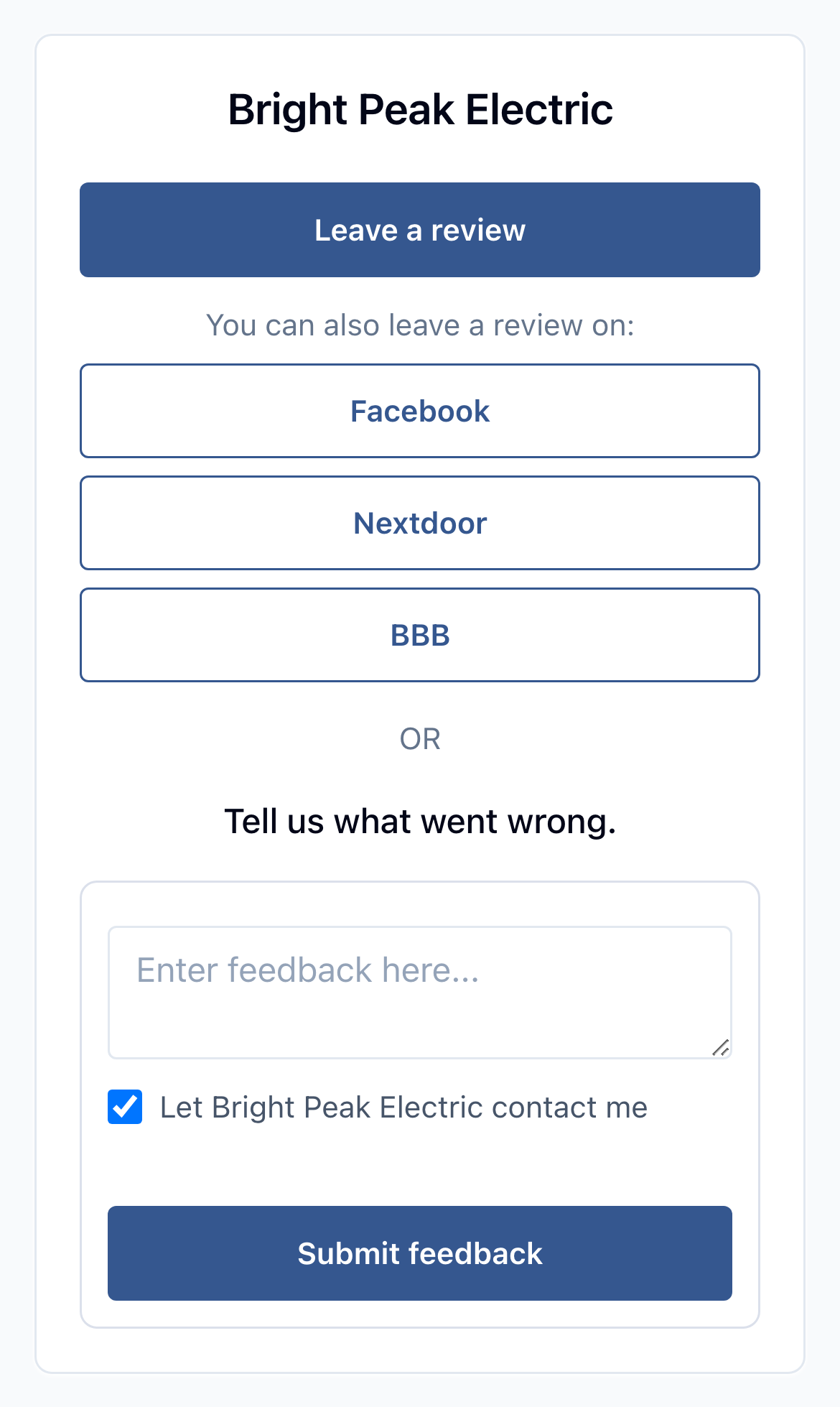
With Reactions, or a Survey that asks for a review, every answer reaches a screen with your public review link and a private form.
Step 4
You read the feedback
Private notes show in your Reviews list, marked private with a lock.
What customers see first
- Direct linkDefault
- Reactions
- Survey
- Private feedback
Your usual request
- Text review request
Wait 2 days
Text follow-upWait 5 days
Email follow-up
Same timing and sending rules as every request.
Private feedback
Dana L.
The repair was great, but the tech arrived an hour late and nobody called.
Shown in your Reviews list. Never posted publicly.
“Wes was very helpful getting me set up with ReviewNudger. He was professional and answered my questions quickly. With a smaller company like his, you talk directly with the people behind it. I'm happy to be using it.”
A customer’s setup experience in acupuncture.
Your choice
Pick how customers answer
Choose what customers see first in Settings. You can change it any time.
Reactions
Customers tap a happy or unhappy face first. Pick smileys, thumbs or hearts, and change the question.
Survey
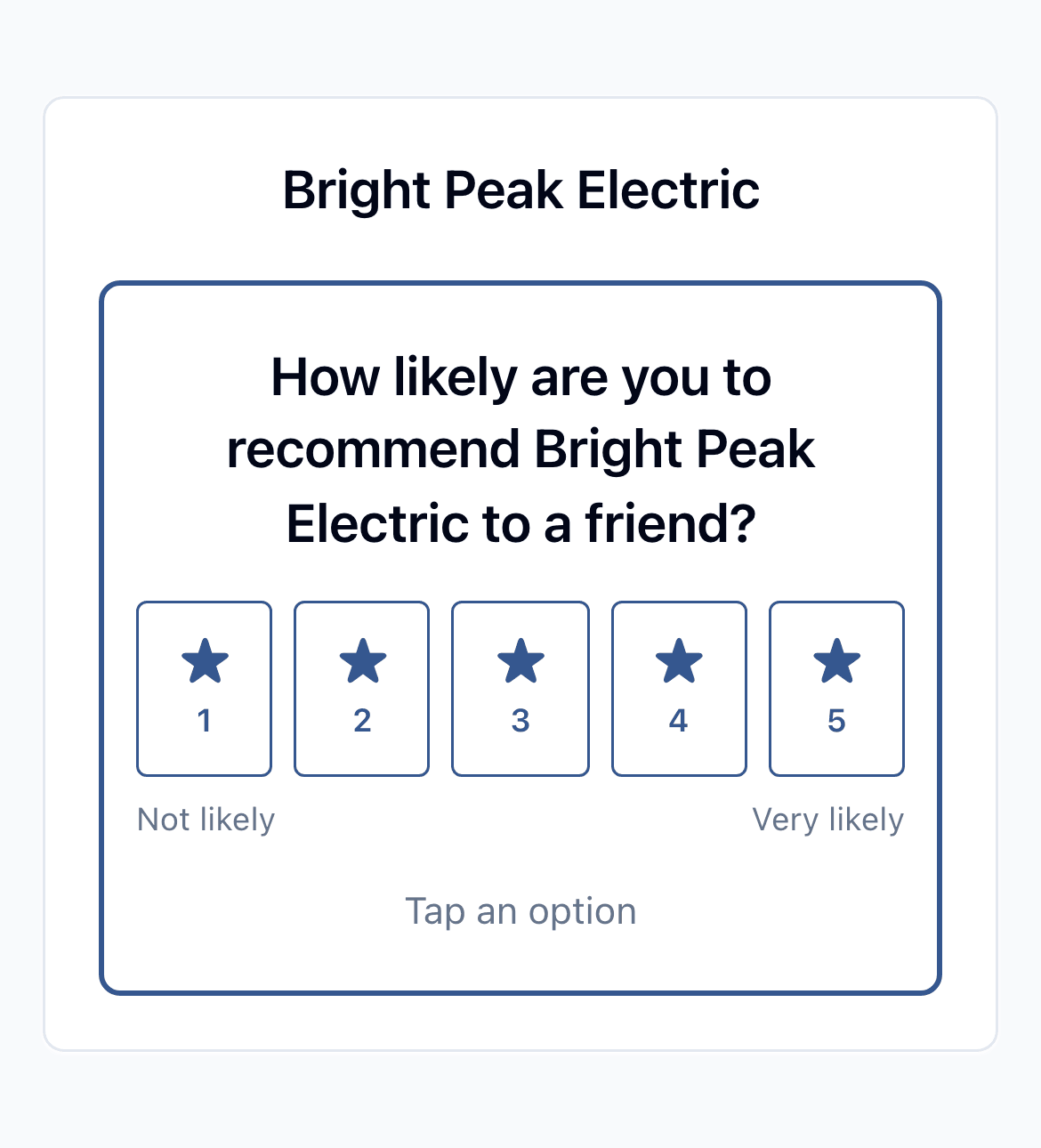
Customers answer one 1 to 5 question, shown as stars or numbers. You can write your own question.
Private feedback
Customers write a note straight to your team. It isn’t posted anywhere.
High ratings see the review screen first
For a survey, you choose whether only 5s, or 4s and 5s, go to the review screen first. With Reactions, a happy face goes there.
Lower ratings still see your review link
A lower rating or an unhappy face shows your public review link at the top, then a private feedback form below it.
Needs a public link first
Reactions and Survey can be turned on only when your location has a working Google review link or another review site saved.
Marked private in Reviews
Private feedback shows in your Reviews list with a lock, so it never gets mixed up with public Google reviews.
Survey and feedback details
By default, a review request sends customers straight to your Google review form. If you also want to hear from customers privately, you have two choices. A request can start with a quick question or a 1 to 5 survey before the review screen. Or you can send a private feedback or survey form that asks for no public review. Both are off until you turn them on. When a request asks first and you’ve saved a Google review link, it stays on the next screen at every rating, so a customer who answers low can still post publicly.
Make one choice in Settings. Every request after that uses it.
- 1In Settings, choose Reactions, Survey or Private feedback. For a survey, choose stars or numbers and which ratings go to the review screen first.
- 2Your requests go out by text or email as usual, following your campaign and sending rules.
- 3The customer answers on your review page. High ratings go to the review screen. Lower ratings see your public review link at the top and a private feedback form below it.
- 4Private feedback shows up in ReviewNudger, marked private. Follow-ups for that request stop once the customer sends it.
Safeguards
Fair to every customer
The public review link stays at every rating
Asking first only changes which screen comes next. The public review link is on both screens.
After they answer
Feedback reaches your team
Private notes land in ReviewNudger. Your team can follow up with the customer.
An email when someone writes
Your team can get an email when a customer leaves private feedback. Owners and admins can turn it off.
Follow-ups stop after feedback
Once a customer sends private feedback, their remaining follow-ups for that request stop.
What this feature does not promise
Plain limits
- Asking first is off by default. New locations send customers straight to Google until you change it.
- Reactions and Survey need a working Google review link or another review site saved for your location.
- A private feedback or private survey request has no public review link. Use it when you want answers, not reviews.
- A survey is one 1 to 5 question. Forms with several questions and 0 to 10 scores aren’t offered.
Frequently asked questions
Is asking first turned on by default?
No. New locations send customers straight to your Google review form. Reactions, Survey and Private feedback stay off until you choose one in Settings.
Can an unhappy customer still leave a Google review?
Yes, when you’ve saved a Google review link. A low rating or an unhappy face shows it at the top of the next screen, above the private feedback form. ReviewNudger never hides the public review link from a customer who answers a question first.
What’s the difference between Survey and Private feedback?
Survey asks one 1 to 5 question. It can lead to the review screen, or you can keep every answer private. Private feedback asks for a written note only. Private requests don’t include a public review link.
Can customers add a photo or ask me to call them?
Yes, if you turn it on. The feedback form can offer a photo upload, and buttons to call, text or email your business. Both are off by default. The form also asks whether it’s okay for you to contact the customer.
When do follow-ups stop?
Follow-ups stop once the customer's Google review shows up in ReviewNudger, or when they send private feedback, reply, or opt out. If ReviewNudger can't check the business's Google reviews, tapping through to Google stops them instead.
Start getting reviews from the customers you already have.
Try ReviewNudger free for 14 days. Connect your software and every customer gets a text or email asking for a Google review.
14 days free, then $29/month per location. Card required.